Registry Dashboard
The registry dashboard is the UI for promoting models and approving changes right inside the notebook - so promotion doesn't have to be code. It surfaces the same names / aliases / tags / audit / lineage that the SDK and CLI drive, backed by the identical audited routes.
It describes the store your cells write to
The dashboard is available in both deployment modes. With
STRATA_NOTEBOOK_REMOTE_STORE_URL set it describes that store rather
than the local one - which is the point: a cell's strata.put(name=...)
and every promotion land there, so reading the local store would show an
empty registry on exactly the deployment where the registry matters.
Everything the tab does goes to the same place: promotions, tags, the
lineage view, and approvals - so a protected alias filed from one person's
server can be approved from another's.
The forwarding happens on the server, not in the page, because the
credentials do: notebook_remote_store_headers is the trusted-proxy
identity the server holds. See
Service Mode → shared research store.
This page is a step-by-step walkthrough. For the concepts (what a name, alias, tag, or approval gate is), see Artifacts & Model Registry.
What you'll build
Publish a model from a cell, promote it to champion, watch the move land in the registry with full audit + lineage - without leaving the notebook.
1. Open the notebook UI
Start the server and open it in a browser:
Open http://localhost:8765 and open (or create) a notebook.
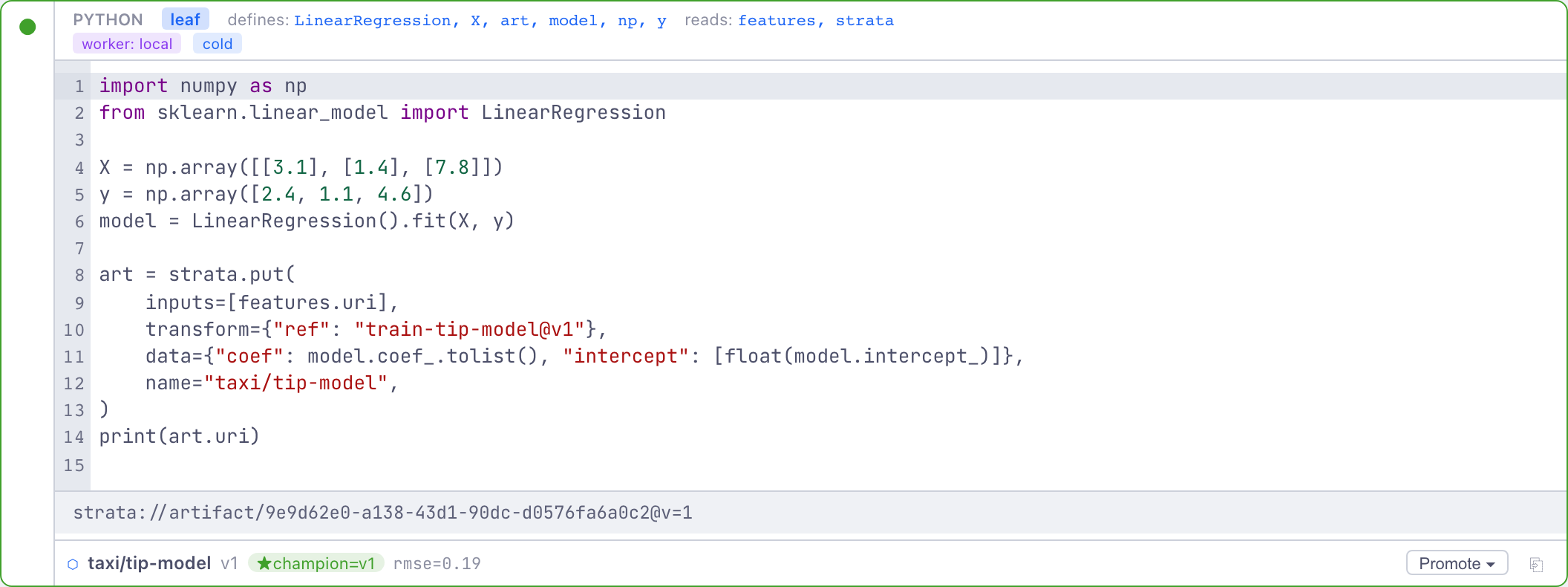
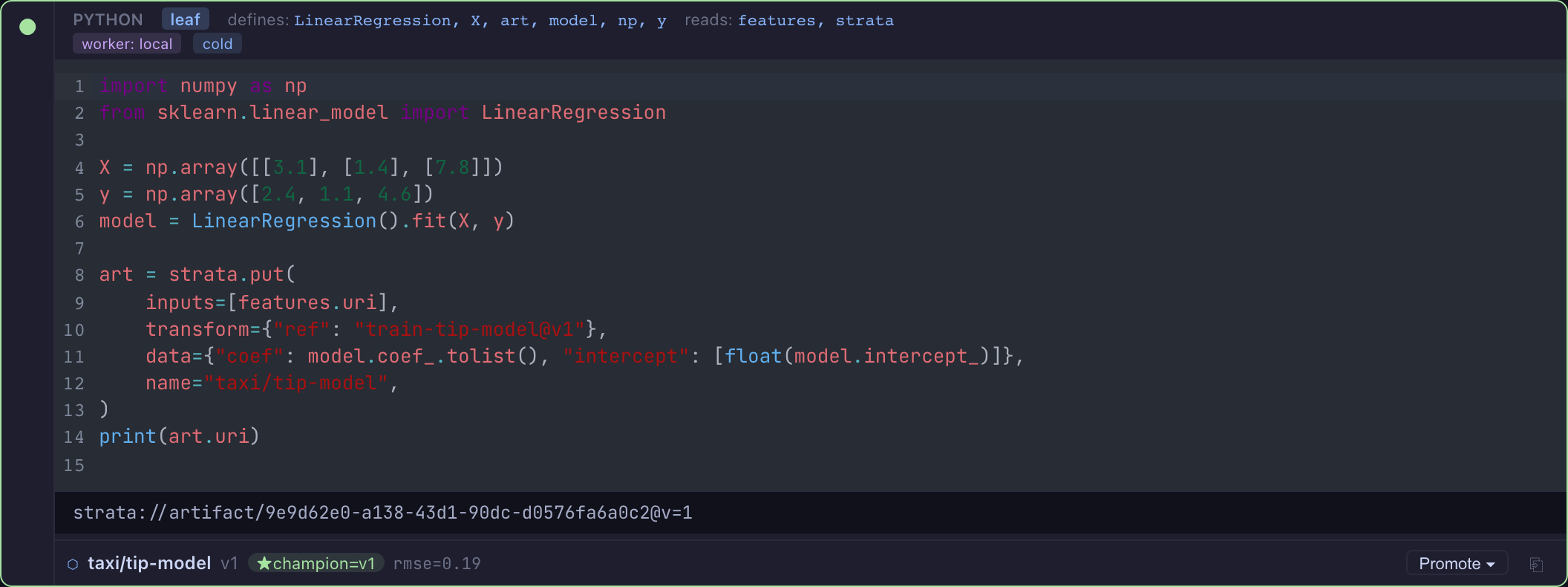
2. Publish a model from a cell
The dashboard surfaces what your cells publish to the registry. Inside any
Python cell, use the ambient strata client.
It's already in the namespace, no import or setup:
# ... you've trained `model` in this or an upstream cell ...
art = strata.put(
    inputs=[],
    transform={"ref": "train-tip-model@v1"},
    data={"coef": model.coef_.tolist(), "intercept": [float(model.intercept_)]},
    name="taxi/tip-model",
)
data is written as Arrow, so pass a dict, a pa.Table, a pandas or polars
DataFrame, or Arrow IPC bytes - the numbers that define the model, not the
fitted estimator object.
Run the cell (Shift+Enter). strata.materialize(..., name="taxi/tip-model")
works the same way. The artifact lands in the registry and is stamped with the
cell that produced it.
3. The per-cell promote strip
A compact strip appears right below the cell that published:
⬡ taxi/tip-model v1- the name and version your cell put.[Promote ▾]- promote this artifact (next step).⎘- open its lineage.
Promote where you trained the model, without scrolling anywhere.
A cell does not have to publish with a name to share a result. With a team
store configured (STRATA_NOTEBOOK_REMOTE_STORE_URL), any cell with stored
outputs gets a ⇪ Promote to team… link on its strip. Pick the output,
give it a team name, and Promote copies it and everything behind it to the
team store, the same as strata artifact promote. The promoted result then
shows on the strip like one the cell published itself.
4. Promote to champion
Click [Promote ▾] and choose Set as champion (or Set as candidate). A toast
confirms the result:
✓ taxi/tip-model → champion- applied immediately (the normal case).⏳ champion change pending approval- the alias is protected (see step 6); the move is queued instead of applied.
champion / candidate are intent pointers - the post-stages model, not
Staging/Production enums. A name can hold both at once (champion and a
challenger candidate).
5. The Registry tab
Open the bottom drawer and click the Registry tab. It has three parts, top to bottom:
- Pending-approval banner - appears only when a protected-alias move is queued, with Approve / Reject buttons (the human gate, in the UI).
- Names table - every registry name, each row showing its alias chips
(
★champion=v1,candidate=v2), latest version, tags, the cells that read it (Read by), a[Promote ▾]menu, and a⎘lineage button. This is the same data on the per-cell strip, but for all names - not just what the current notebook published. - Audit timeline (collapsible) - every name / alias / tag mutation, newest first, with who and from → to.
Read by lists the cells that read a name with
# @dataset, each from a result it stored. Cells of
the open notebook show by name as soon as they have run. A cell in another
notebook shows as <notebook id>/<cell id> once one of its results reaches
the store the tab describes, by promotion or publication; a result that stays
in its own notebook is not visible from anywhere else.
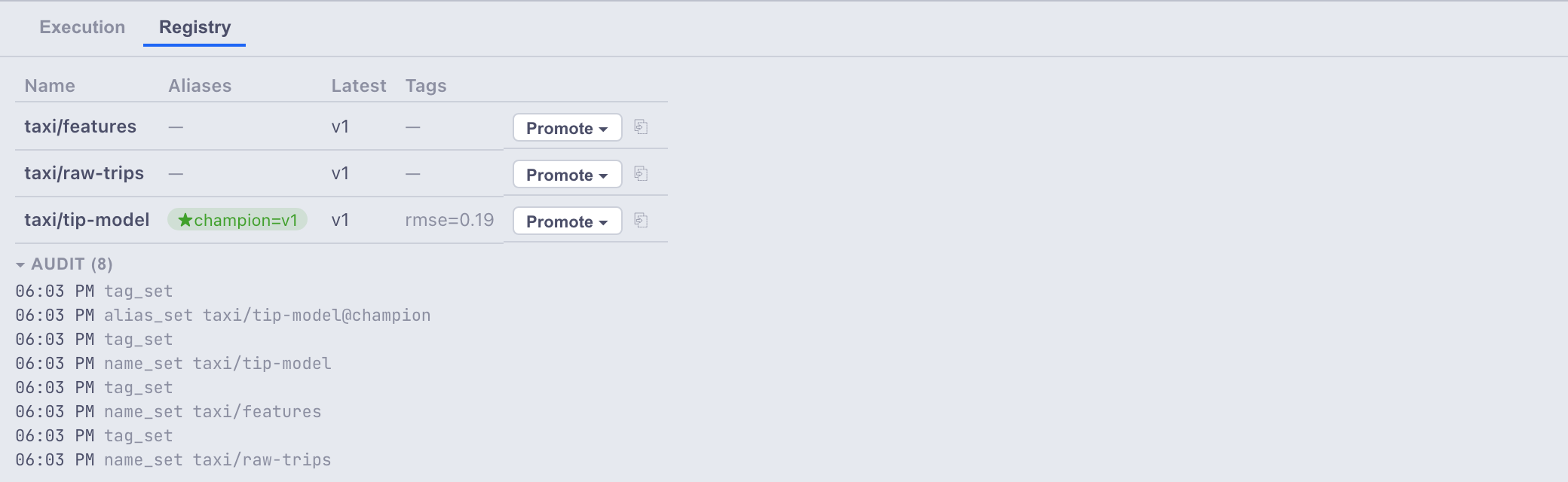
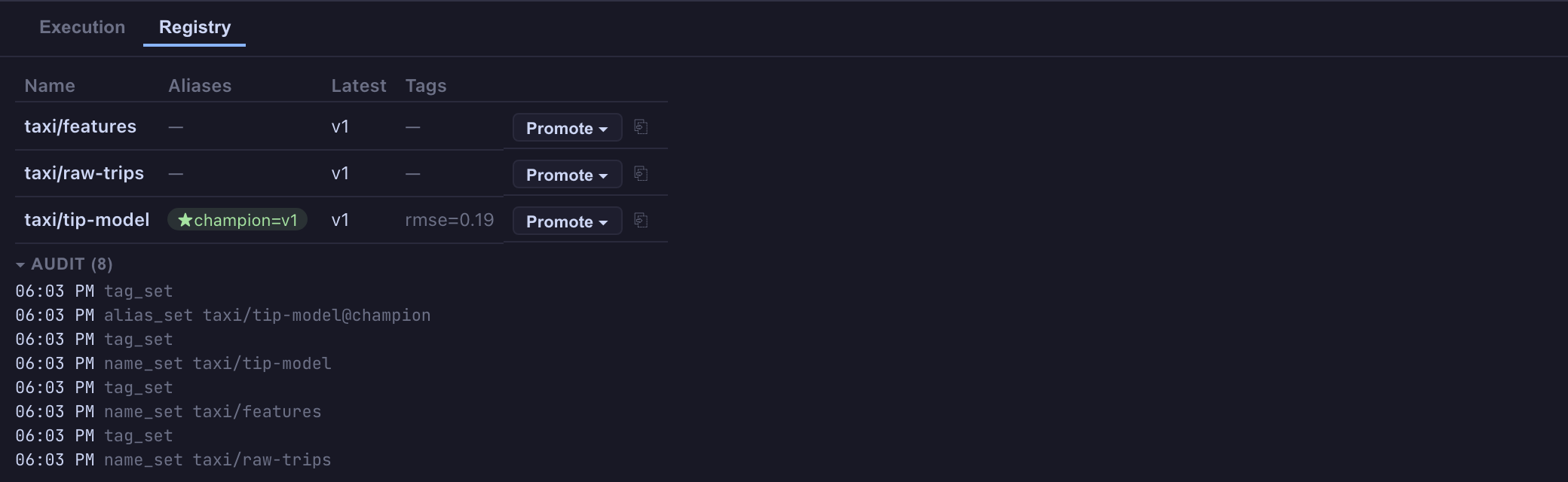
(No pending-approval banner here - nothing is queued. Step 6 covers what it looks like when a protected alias holds a move back.)
6. Approval gates (protected aliases)
To require a human for sensitive promotions, mark aliases protected when you start the server:
Now a promote to champion (step 4) returns ⏳ pending instead of applying.
The pending banner appears at the top of the Registry tab; click Approve
to apply it (the approver becomes the audit actor) or Reject to discard it.
Unprotected aliases (candidate) still apply immediately.
7. View lineage
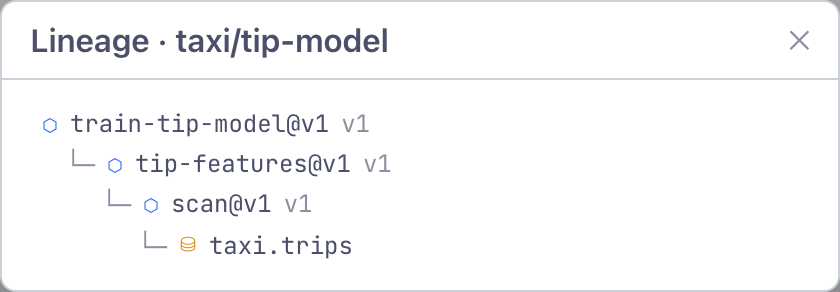
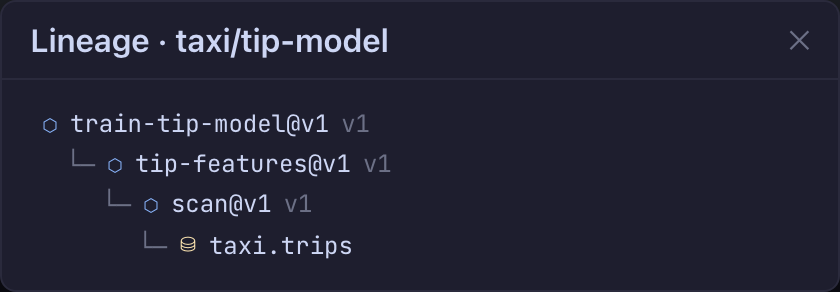
Click the ⎘ button on the strip or any names-table row. The lineage
view renders the provenance chain:
This is the same chain strata artifact lineage prints on the CLI, as an interactive
view. It answers "which snapshot trained this model?" in one click.
Troubleshooting
| Symptom | Why |
|---|---|
| The registry looks empty on a machine that has published things | Check STRATA_NOTEBOOK_REMOTE_STORE_URL. The dashboard describes the store the cells write to, so an unset URL on a server whose cells publish elsewhere - or a set one pointing at a store nobody publishes to - shows an empty registry rather than an error. |
| The tab reports a 502 | The team store could not be reached. That is deliberately not an empty registry: "nobody has published anything" and "I could not ask" are different facts. |
| Registry tab is empty | Nothing's been published with a name yet. Run a cell with strata.put(inputs=[], transform=…, data=…, name="…"). |
| A cell ran but no per-cell strip | The strip only shows artifacts a cell published via the ambient strata client (a named put / materialize). Artifacts created another way still appear in the names table, just not as a per-cell strip. |
| Promote said "pending" unexpectedly | That alias is in STRATA_REGISTRY_PROTECTED_ALIASES - approve it from the pending banner. |
| Promote did nothing | Setting an alias to the version it already points at is an idempotent no-op (the toast ends in (no change)). |
See also
- Artifacts & Model Registry - the concepts and the SDK/CLI that drive the same registry.
- The ambient
strataclient - how cells publish. - Lake-Aware Cells - the
@tableflow that makes a training cell stale so you re-promote when new data lands.